While the announcement of a new intermediate release of Gallio/MbUnit is imminent (next week?), we are continuing to focus on the major improvements that will be available in the future versions.
In case you are running Gallio against very large test suites (> 10000 tests), you might be interested by the following new feature. You can experiment it already by installing the latest v3.3 daily build (it's pretty stable already, IMHO)
As you may know, we dropped the XSL-based engine used for the report generation, in favor of high performing VTL templates (based on Castle NVelocity). The generation of the Text/HTML reports (Text, Text-Condensed, Html, Html-Condensed, XHtml, and XHtml-Condensed) is about 3 times faster. But more important, the report writer now supports multi-paging. Say goodbye to the heavy 20Mb reports that take hours to open in the web browser! Gallio is now able to split large reports into several smaller browsable files.

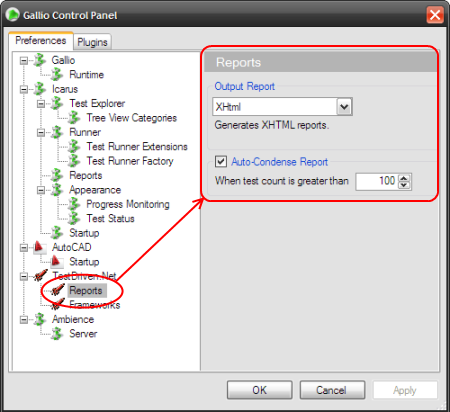
You might configure some parameters from the Gallio Control Panel. It's machine-wide settings that will affect the reports generated by every tool and test runner.

In case you are running Gallio against very large test suites (> 10000 tests), you might be interested by the following new feature. You can experiment it already by installing the latest v3.3 daily build (it's pretty stable already, IMHO)
As you may know, we dropped the XSL-based engine used for the report generation, in favor of high performing VTL templates (based on Castle NVelocity). The generation of the Text/HTML reports (Text, Text-Condensed, Html, Html-Condensed, XHtml, and XHtml-Condensed) is about 3 times faster. But more important, the report writer now supports multi-paging. Say goodbye to the heavy 20Mb reports that take hours to open in the web browser! Gallio is now able to split large reports into several smaller browsable files.
You might configure some parameters from the Gallio Control Panel. It's machine-wide settings that will affect the reports generated by every tool and test runner.